8 min read · Updated August 2026
eSIM for iPhone: Setup, Settings, and the Quirks Apple Does Not Explain
Every iPhone since 2018 supports eSIM, and US models since the iPhone 14 have no SIM tray at all. Here is the exact setup path, the settings that matter for travel, and the iOS behaviours that surprise people.

Published August 11, 2026 · 8 min read
Which iPhones support eSIM
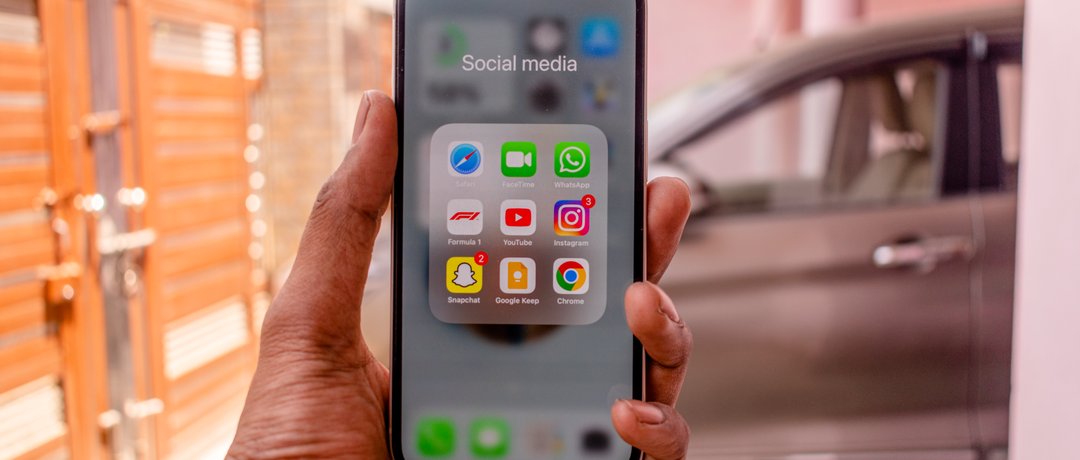
Every iPhone from the XR and XS generation onward supports eSIM, which in practice means any iPhone most people are still carrying. From the iPhone 13 onward, two eSIMs can be active at once alongside or instead of a physical SIM. US-market iPhone 14 and every model after it removed the SIM tray entirely, making them eSIM-only devices.
The sixty-second check is Settings, then General, then About: if you see an Available SIM or Digital SIM entry with an EID number, the hardware is there. The second requirement is carrier unlocking. A phone still tied to the carrier that financed it will reject foreign profiles no matter how new it is, and that unlock can take a few days to process, so test well before departure rather than at the gate.
Installing a travel eSIM, step by step
Open Settings, then Cellular or Mobile Service, then Add eSIM. Choose Use QR Code and scan the code your provider emailed, on Wi-Fi, at home. Some providers install directly through their own app instead, which skips the scanning entirely. Either way the download takes well under a minute.
iOS then asks you to label the line. Give it something you will recognise at two in the morning in an arrivals hall, like Japan Trip, rather than accepting Secondary or Travel. iOS follows up with a series of default questions: which line for calls, which for iMessage, which for data. Set data to the travel eSIM and leave your calls and iMessage on your home line, which is the arrangement almost every traveler wants.
The three travel settings that matter
First, data line: Settings, Cellular, Cellular Data, then select the travel eSIM. Installed and enabled does not mean selected, and this catches people constantly. Second, roaming on the travel eSIM: tap that line and turn Data Roaming on, because travel eSIMs connect by roaming onto local partner networks and will find nothing with it off.
Third, and the one that quietly costs money: Allow Cellular Data Switching, found under Cellular Data. When enabled, iOS may fall back to your home line for data if the eSIM struggles, which sounds like a safety net and is really a route to roaming charges. Turn it off. While you are in that screen, turn Data Roaming OFF for your home line, which still receives calls and bank codes for free on most plans.
iOS behaviours that surprise people
The status bar shows two sets of signal bars once dual SIM is running, which is normal and not a fault. iMessage and FaceTime stay attached to whichever line you assigned them, so your blue bubbles keep working through the eSIM's data on your usual number. Contacts can be pinned to a preferred line, which is worth setting for anyone you would rather always call from your home number.
eSIM Quick Transfer lets you move an eSIM between iPhones without a new QR code, which is genuinely useful when upgrading handsets, though many travel eSIM providers do not support it and their plans stay tied to the original device. Do not assume it will work with a travel plan. And when you set up a brand new iPhone, plan transfers are part of the migration flow, so read those screens rather than tapping through them.
When something goes wrong on iPhone
The order that resolves most cases: confirm Data Roaming is on for the eSIM, confirm the eSIM is set as the data line, restart the phone, then toggle airplane mode. If the line still refuses to register, go to Settings, Cellular, select the eSIM, then Network Selection, turn off Automatic and pick the local partner network your plan names.
One rule specific to iPhone deserves emphasis because the interface makes it too easy: Settings, Cellular, tap a line, and Remove eSIM sits right there in red. Do not use it on a travel plan. Most travel eSIMs are single-install and removal is permanent. Use Turn Off This Line instead, which is fully reversible. The complete diagnostic sequence for both platforms is in eSIM not working: the fix list.
Getting the most out of dual SIM on iPhone
The setup experienced travelers run looks like this: home line active with data roaming off, handling incoming calls and two-factor codes; travel eSIM as the data line with roaming on, carrying maps, ride apps and messaging; calls home over WhatsApp or FaceTime rather than the home carrier. Nothing needs changing day to day once it is configured.
The deeper reasoning behind that arrangement, including what dual SIM can and cannot do, is in using an eSIM and physical SIM together. When you are ready to pick a plan, start from your destination: every country guide names the local networks and flags the coverage traps, from Japan to the UAE.
Frequently asked questions
Which iPhones support eSIM?
Every iPhone from the XR and XS (2018) onward. From the iPhone 13, two eSIMs can be active simultaneously. US-market iPhone 14 and newer have no SIM tray at all and are eSIM-only.
How do I add an eSIM on iPhone?
Settings, then Cellular or Mobile Service, then Add eSIM, then Use QR Code and scan the code your provider sent. Do this on Wi-Fi before you travel. Some providers install through their own app instead, which is even quicker.
What is Allow Cellular Data Switching and should I turn it off?
It lets iOS fall back to your other line for data when the selected line struggles. For travelers this can silently route data through your home carrier at roaming rates, so turn it off while abroad.
Can I remove an eSIM from my iPhone and add it back later?
Not with most travel eSIMs. Remove eSIM is permanent for single-install profiles, which is what nearly all travel plans are. Use Turn Off This Line instead, which is reversible.
Does iMessage still work with a travel eSIM?
Yes. iMessage and FaceTime stay tied to the line you assigned them, normally your home number, and run over whatever data connection is active, including the travel eSIM.
My US iPhone has no SIM tray. Can I still travel with it?
Yes, and eSIM is your only option, which is fine because travel eSIMs are exactly what these phones are designed around. Install the travel profile alongside your existing carrier eSIM and switch the data line when you land.