12 min read · Updated October 2026
eSIM QR Code: How to Scan, Install and Fix Errors (2026)
What an eSIM QR code contains, how to scan it on iPhone and Android, installing on the same phone, whether you can reuse it, and fixes for common errors.

Published October 16, 2026 · 12 min read
The short answer
- What it is
- A one-time link to download your eSIM profile
- Can you reuse it?
- Usually no, most travel eSIM QR codes work once
- Same phone, no second screen
- iPhone iOS 17.4+: touch and hold the code, tap Add eSIM
- No camera option
- Enter the SM-DP+ address and activation code manually
- Needs internet?
- Yes, Wi-Fi or data to download the profile
- Best time to scan
- At home on Wi-Fi, a day or two before you fly
What is an eSIM QR code?
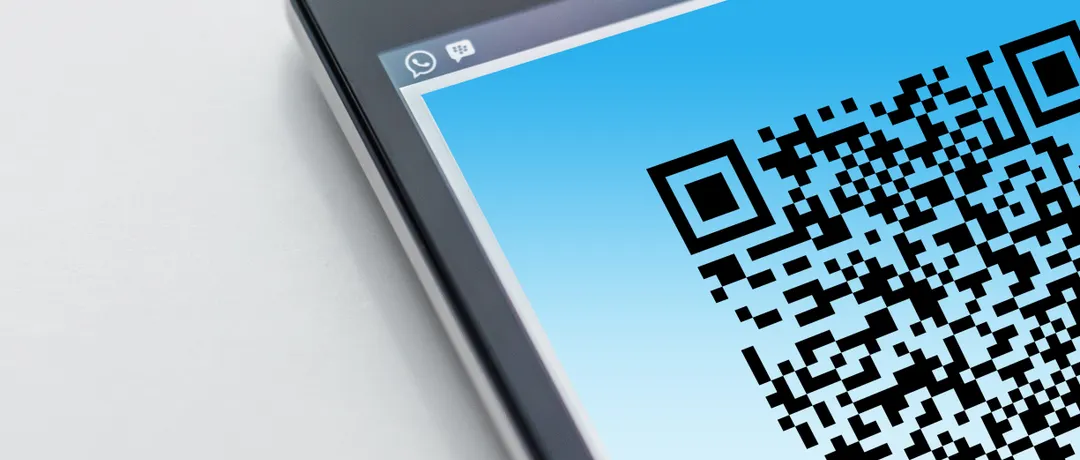
An eSIM QR code is a one-time link that tells your phone where to download your eSIM profile. When you buy a QR code eSIM, the provider sends the code by email or shows it in its app. You scan it in your phone's settings, the phone connects to the provider's server, downloads the profile and installs it, and the code has usually done its job for good.
The QR code itself is not the eSIM. It is a short piece of text in a standard format set by the GSMA, the mobile industry body. It starts with LPA:1, followed by the address of the provider's download server, called the SM-DP+ address, and a unique activation code. Some providers add a confirmation code that you type in when asked. Knowing these parts matters, because if the camera will not scan, you can type the same details in by hand.
| Part | What it looks like | What it does |
|---|---|---|
| Prefix | LPA:1$ | Tells the phone this is an eSIM download |
| SM-DP+ address | A server name such as smdp.example.com | Where the phone downloads your profile |
| Activation code | A long string of letters and numbers | Identifies your specific eSIM |
| Confirmation code (optional) | A short number, sent separately | Extra check some providers use |
How to scan an eSIM QR code on iPhone
On an iPhone, open Settings, then Cellular or Mobile Service, then Add eSIM, and choose Use QR Code. Point the camera at the code on another screen or on paper, follow the prompts, and label the new line something clear, such as Japan travel. When the iPhone asks which line to use for data, you can choose your home line for now and switch to the eSIM when you land.
Apple's guide to setting up eSIM on iPhone covers the same steps. If you are asked for a confirmation code, enter the number your provider sent with the QR code. Our eSIM for iPhone guide explains the settings Apple does not make obvious, such as which line handles iMessage and how to stop your home line using data abroad.
iPhone steps in order
- 1Connect to Wi-Fi.
- 2Open Settings, then Cellular (or Mobile Service).
- 3Tap Add eSIM, then Use QR Code.
- 4Scan the code shown on another screen or printed on paper.
- 5Enter a confirmation code if asked, then label the line.
- 6Leave the eSIM switched off until you land, then turn it on and turn on data roaming for it.
How to scan an eSIM QR code on Android
Android menus vary by brand, but the route is similar on all of them. On a Google Pixel, open Settings, then Network and internet, then SIMs, and choose the option to add or download an eSIM. On a Samsung Galaxy, open Settings, then Connections, then SIM manager, and tap Add eSIM. In both cases the phone opens a scanner for the QR code. Google's Pixel help page on SIMs and eSIMs shows the current menu names.
On some Android phones the scanner screen also offers a way to enter the details manually, and some can read a QR code from a saved image. If you cannot find the menu at all, the phone may not support eSIM or may be locked to a carrier. Our eSIM compatible phones list shows how to check in about a minute.
After the scan, Android asks a few questions that matter for travel. Give the new SIM a clear name, choose your home SIM for calls and texts if you want to keep your number, and set the eSIM as the SIM for mobile data once you arrive. Then open the eSIM's own settings and turn on roaming for it, because a travel eSIM is always roaming as far as the phone is concerned. Leaving roaming off is the single most common reason a newly installed eSIM shows signal but no internet.
How to install a QR code eSIM on the same phone
The most common problem with a QR code eSIM is practical: the code arrives in an email on the same phone that needs to scan it. There are four ways round this. The simplest is to open the email on a laptop, tablet or another phone and scan it from that screen. You can also print the code and scan the paper.
On an iPhone with iOS 17.4 or later, you can install directly from the email or a web page: touch and hold the QR code, then tap Add eSIM, according to Apple. If you saved the code as a screenshot, some iPhones let you choose it from Photos in the Use QR Code screen, though this does not work with every provider's code. If none of that works, use manual entry, which needs only the SM-DP+ address and activation code from the email.
Many providers now skip the QR code entirely and install the eSIM from their own app with one tap. If your provider offers that, it is usually the quickest route on the same phone, because the app passes the details straight to the phone's settings.
| Method | What you need | Best when |
|---|---|---|
| Scan the QR code | The code on another screen or on paper | You have a laptop, tablet or printer |
| Touch and hold the code (iPhone) | iOS 17.4 or later, code in Mail or a browser | The code is on the same iPhone |
| Enter details manually | SM-DP+ address and activation code | The camera will not read the code |
| One tap install in the provider's app | The provider's app and an account | Your provider supports it |
Can you reuse an eSIM QR code?
Usually not. Most travel eSIM QR codes can be installed only once. When you scan the code, the provider's server marks it as used and links the profile to your phone. If you scan it again on another phone, or after deleting the eSIM, you will normally see an error saying the code is no longer valid.
That is why you should never delete a travel eSIM to fix a problem unless the provider tells you to. Deleting it removes the profile from your phone, and getting it back usually means asking the provider for a new code, which some do for free and some do not. Turning the eSIM off and on again, or restarting the phone, fixes most problems without that risk. Our eSIM not working fix list goes through the safe fixes in order.
The same rule applies when you change phones. Carrier eSIMs at home can sometimes move between phones with transfer tools, but most travel eSIMs cannot, so ask the provider for a new QR code before you switch handsets.
eSIM QR code errors and how to fix them
Most eSIM QR code errors come from four causes: the code has already been used, the phone has no internet connection, the phone is locked to a carrier or does not support eSIM, or the camera cannot read the code. The table below lists the messages people see most often and what to do about each.
If an error appears and you are not sure why, stop and contact the provider before trying again. Scanning a code several times in a row rarely helps and can mark it as used, while support can check on their side whether the profile has already been downloaded.
| What you see | Likely cause | What to do |
|---|---|---|
| This code is no longer valid | The code was already used | Ask the provider for a new QR code |
| Unable to complete cellular plan change | Weak internet or a busy server | Connect to stable Wi-Fi and try once more later |
| Cellular plan cannot be added | Phone locked to a carrier or eSIM not supported | Check carrier lock and compatibility |
| Nothing happens when you scan | Code is blurry, cropped or too small | Show it larger on another screen, or enter details manually |
| Asked for a confirmation code | Your provider uses one | Find it in the purchase email or the app |
When should you scan your eSIM QR code?
Scan your eSIM QR code at home on Wi-Fi, a day or two before you fly. Installing needs an internet connection, because the phone downloads the profile from the provider's server, and airport Wi-Fi is the worst place to do it. Once installed, the eSIM can sit switched off until you land and does not need Wi-Fi again.
For most travel eSIMs, installing early does not start the plan. Validity usually begins when the eSIM first connects to a network in the destination, so a plan for Japan installed in London on Monday starts counting when you land in Tokyo on Wednesday. Check your provider's terms, because a few plans start on installation. Our step by step guide on how to install a travel eSIM before you fly covers the full routine.
Lost your eSIM QR code? What to do
If you have not installed the eSIM yet, a lost QR code is easy to recover. Search your inbox and spam folder for the purchase email, then check the provider's app or your account on its website, where most providers show the code again under your order. If you bought through a reseller or a travel agent, the code may have gone to their email address instead of yours, so ask them to forward it.
If the eSIM is already installed, you do not need the QR code any more. The profile lives on your phone and works whether or not you can find the email. You only need a new code if you delete the eSIM, reset the phone or move to a new handset, and in those cases the provider has to issue one, because the original code was used the first time you scanned it.
One thing to avoid: do not reset your phone's network settings or erase all content to fix a problem with a travel eSIM unless support asks you to. Some reset options remove eSIM profiles, and you would then need new codes for every eSIM on the phone, including any you were planning to use on later trips.
Setting up a QR code eSIM for family members
Each QR code installs one eSIM on one phone, so a family of four travelling together needs four plans and four codes, or one larger plan on one phone shared with the others as a hotspot. Check that the plan allows hotspot use before you rely on sharing, because some unlimited plans restrict it.
If you are setting up eSIMs for parents or children, do it for them at home before the trip. Show each code on your laptop, scan it with their phone, label the line clearly with the country name, and leave it switched off. Write a short note with the two settings they will need on arrival: turn on the eSIM line and turn on data roaming for it. That removes almost every problem pilgrims, older travelers and first time users run into at the airport.
How to keep your eSIM QR code safe
Treat an eSIM QR code like a SIM card in an envelope. Until it is installed, anyone who scans it first gets your eSIM and your data. Do not post a screenshot of the code online or send it to someone to help you, and delete forwarded copies once the eSIM is installed.
After installation the code is usually worthless, because it has been used. Even so, keep the purchase email, since it holds your order number, the activation code and the support details you need if anything goes wrong. If you think someone else scanned your code before you did, contact the provider straight away.
QR code eSIM vs a physical SIM card
A QR code eSIM does the same job as a physical SIM card, without the plastic. Instead of collecting a card at a shop or airport counter and swapping it into the tray, you scan a code from home and the SIM is downloaded. Your home SIM can stay in the phone, so you keep your number for calls and bank codes while the eSIM handles data.
Most modern phones can store several eSIM profiles at once, so you can keep eSIMs for different trips installed and switch between them in settings. A physical SIM still makes sense if your phone does not support eSIM, or if you need a local phone number for a long stay. The eSIM article on Wikipedia has more background on how the standard works.
Frequently asked questions
What is a QR code eSIM?
A QR code eSIM is an eSIM you install by scanning a QR code from your provider. The code contains the address of the provider's server and a unique activation code. When you scan it in your phone's settings, the phone downloads and installs the eSIM profile.
Can I scan an eSIM QR code twice?
Usually not. Most travel eSIM QR codes work once, and scanning again shows an error such as this code is no longer valid. If you deleted the eSIM or changed phones, ask the provider for a new QR code.
How do I install an eSIM QR code on the same phone?
On an iPhone with iOS 17.4 or later, touch and hold the QR code in Mail or a browser, then tap Add eSIM. On any phone, you can also enter the SM-DP+ address and activation code manually, or use the provider's app if it offers a one tap install.
Can I scan an eSIM QR code from a screenshot?
Sometimes. Some iPhones can select a saved image from Photos in the Use QR Code screen, and some Android phones can read a QR code from an image, but it does not work with every provider. Showing the code on another screen or entering the details manually always works.
Do I need Wi-Fi to scan an eSIM QR code?
You need an internet connection, because the phone downloads the eSIM profile when you scan the code. Wi-Fi at home is best. After installation, the eSIM works on its own mobile data and does not need Wi-Fi.
Does scanning the QR code start my eSIM plan?
For most travel eSIMs, no. The plan usually starts when the eSIM first connects to a network in the destination country. A few plans start on installation, so check the provider's terms before you scan the code weeks in advance.
What happens if I delete my eSIM after scanning the QR code?
The profile is removed from your phone, and the same QR code will usually not work again. You will need a new code from the provider, which some issue for free. Turn the eSIM off instead of deleting it if you just want to stop using it for a while.
Where do I find my eSIM QR code?
Most providers send the QR code by email straight after purchase, and also show it in the app or your account page on their website. If you cannot find it, check your spam folder or log in to the provider's app before contacting support.
Can one eSIM QR code be used on two phones?
No. Each QR code installs one eSIM on one phone. For a family or group, buy one plan per phone, or buy a larger plan for one phone and share it as a hotspot if the plan allows it.
Can I install an eSIM QR code on an iPad?
Often yes, if the iPad has cellular support and the provider's plan supports tablets. Scan the code in the iPad's cellular data settings in the same way as on a phone. Check the provider's device list before buying, because some plans are sold for phones only.
What is the SM-DP+ address?
The SM-DP+ address is the server your phone downloads the eSIM profile from. It is part of the QR code, and providers also list it in the purchase email so you can enter it manually with the activation code if scanning does not work.
Sources and official references
More on setup and activation
Installing, activating, and configuring before you fly.